What is Quad Multi-Screen IPTV? #
If you are an avid sports fan or news follower, you know the frustration of having multiple live matches or breaking news events happening at the exact same moment. Normally, you have to constantly switch back and forth between channels.
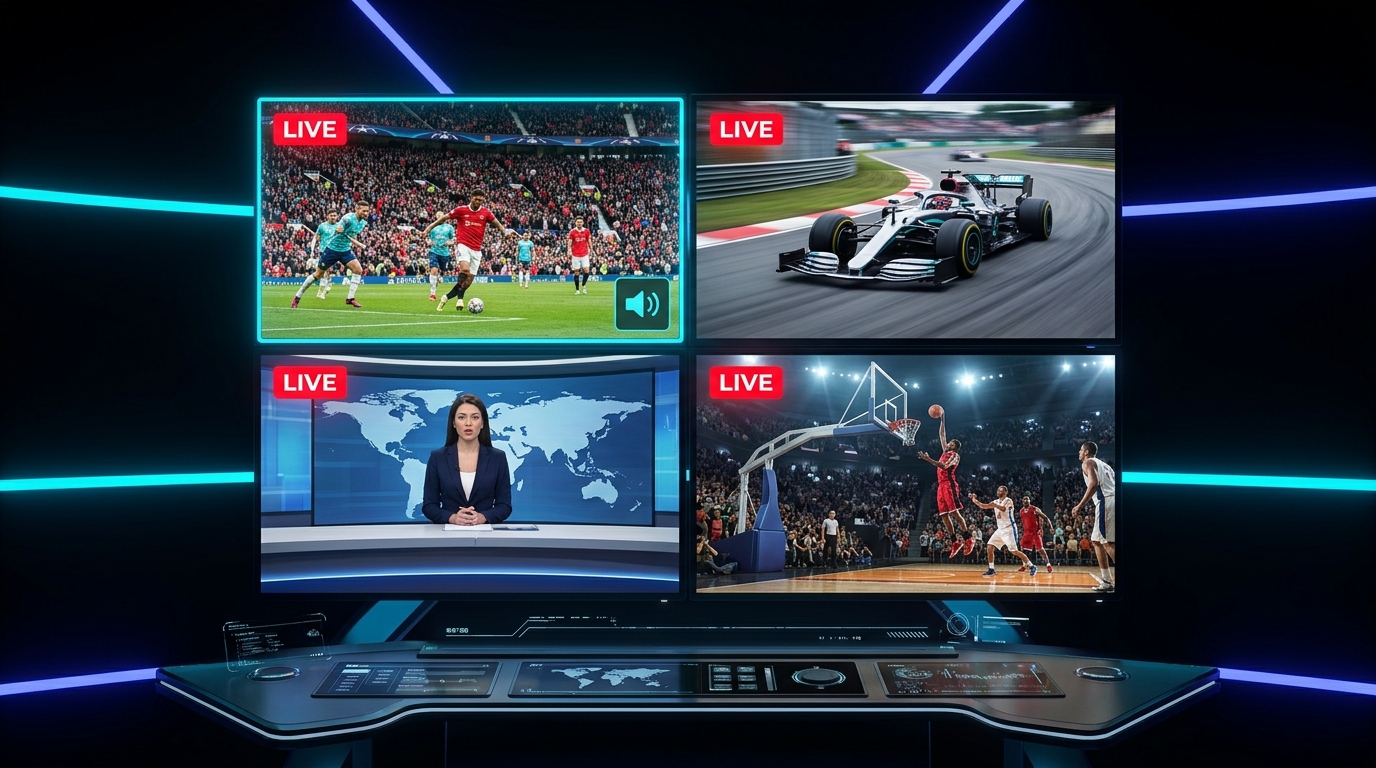
With Plyon's Quad Multi-Screen IPTV Engine, you can stream up to 4 live television channels simultaneously on a single screen:
- Quadrant 1: Premier League football match
- Quadrant 2: Formula 1 Grand Prix or Cricket
- Quadrant 3: Global breaking news channel
- Quadrant 4: Local sports or entertainment
You can independently mute or unmute any channel with a single tap, swap positions dynamically, or double-tap any quadrant to expand it to full screen instantly!
How to Setup IPTV in Plyon (2 Minutes Setup) #
Setting up your personal IPTV playlist in Plyon is quick and intuitive:
Method 1: M3U / M3U8 Playlist URL #
- Open Plyon and navigate to the "Live IPTV" tab.
- Tap the "+ Add Playlist" button in the top right corner.
- Select "M3U URL".
- Give your playlist a nickname (e.g., My Sports Playlist) and paste your M3U or M3U8 web link.
- Tap "Import Playlist". Plyon will parse channel names, category groups, channel logos, and EPG metadata in seconds.
Method 2: Xtream Codes API #
- Tap "+ Add Playlist" and choose "Xtream Codes API".
- Enter your Server Portal URL (e.g.,
http://example.com:8080), Username, and Password. - Tap "Login & Sync". Your Live Channels, Movies (VOD), and Series categories will sync automatically.
Method 3: Local M3U File #
If you downloaded an .m3u file on your phone storage, simply tap "Select Local File" and Plyon will import it without requiring an internet connection.
Activating Quad Multi-View Mode #
Once your channels are loaded:
- Start playing any live channel.
- In the player controls, tap the "Multi-Screen (Grid)" icon.
- Choose your desired layout: Dual Screen (2 Channels) or Quad Screen (4 Channels).
- Tap the empty slots to choose which channels to assign to each window.
- Tap any window to toggle its audio track as primary.
Essential IPTV Performance Tips #
- Buffer Size Configuration: In Plyon Settings, choose Fast (2s) for low latency sports or Stable (8s) for unstable Wi-Fi networks.
- Hardware Acceleration: Ensure HW+ Video Decoding is enabled to ensure all 4 video decoders run without overheating your device.
- Favorites List: Long-press any channel in the list to add it to your "Quick Access Favorites" for rapid 1-tap switching during live events.
Conclusion #
Plyon redefines mobile television by bringing professional broadcast multi-monitoring directly to your Android device. Download Plyon today and never miss another crucial sports moment.